
AI Filter for Photos: Every AI Photo Filter in One Place
An AI filter for photos uses an image model to redraw your picture, for example with a new hairline, an anime look or a repaired old print, instead of only shifting colors like a classic filter. Upload one photo here, then pick any of the 15 filters below to open it with your photo.
Adding a photo here is free. Applying a filter needs a free account and uses credits: new accounts get sign-up credits, and each filter shows its cost before you generate.
Add a photo to try AI filters
JPG, PNG, WebP or HEIC. The photo opens in whichever filter you pick below.
AI Face Filters: Gender Swap, Bald Head and Headshots
Face filters keep you recognizable and change one thing about how you look: your gender presentation, your hairline, your outfit and backdrop, or your passport-photo setup.
- Gender Swap FilterPreview a male-to-female or female-to-male look, in three strength levels.Try this filter
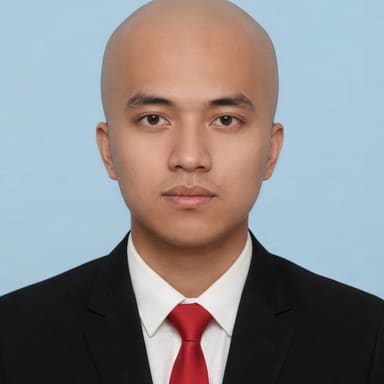 AI Bald FilterSee six hairline stages, from a slight recession to fully bald or a buzz cut.Try this filter
 AI Headshot GeneratorTurn a selfie into a square, LinkedIn-ready headshot with a new outfit and backdrop.Try this filter
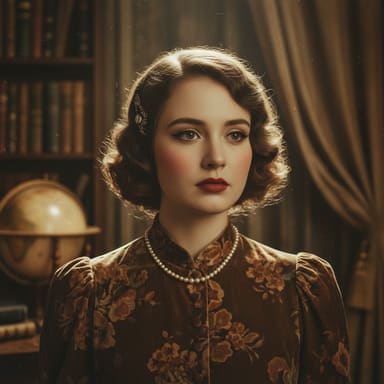 Portrait EnhancementRetouch a portrait in a natural, glamour, vintage or soft style.Try this filter
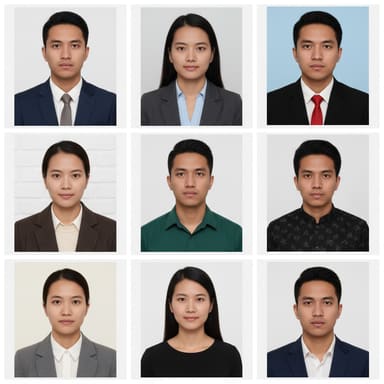 AI ID Photo MakerMake a passport or visa-style photo on a plain background color.Try this filter
AI Art and Anime Filters
Art filters redraw the whole photo in a new style, from an impressionist painting to black-and-white manga, a collectible figure or a sheet of stickers.
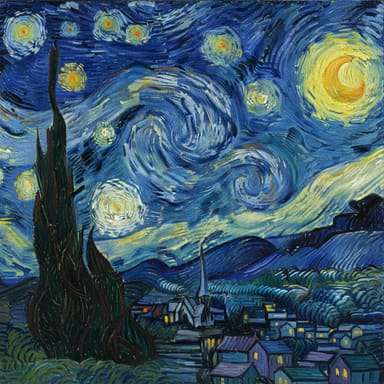 Art Style TransferRepaint a photo as an impressionist, cubist, pop art, watercolor or other painting.Try this filter
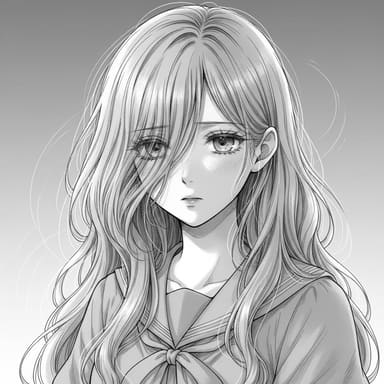 Black and White AnimeTurn a photo into a dramatic black-and-white manga drawing.Try this filter
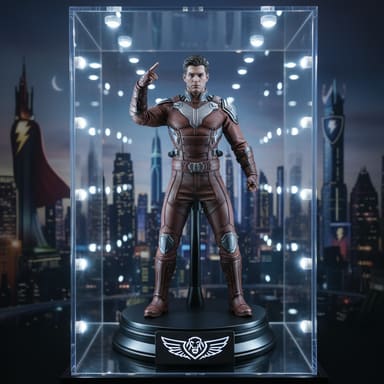 Collectible FigureTurn a person or character into a collectible figure on a desk or in a display case.Try this filter
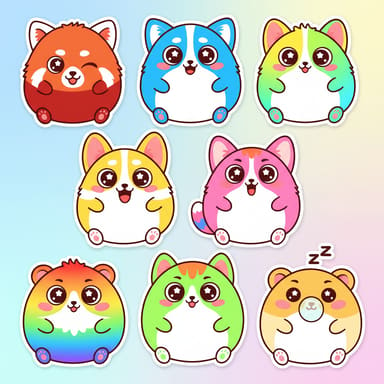 AI Sticker GeneratorTurn a photo or an idea into stickers with a white outline.Try this filter
Photo Fix and Enhancement Filters
These filters work on the photo itself: repair scratched and faded prints, cut the subject out of the background, or give a snapshot studio lighting.
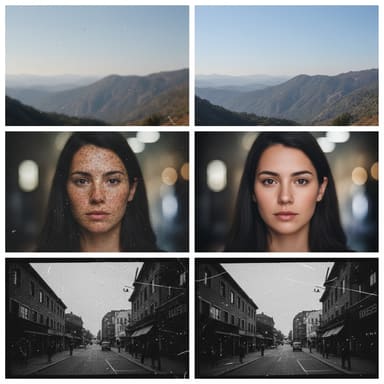 AI Photo RestorationRepair scratches, cracks and fading in old photos, with optional colorize.Try this filter
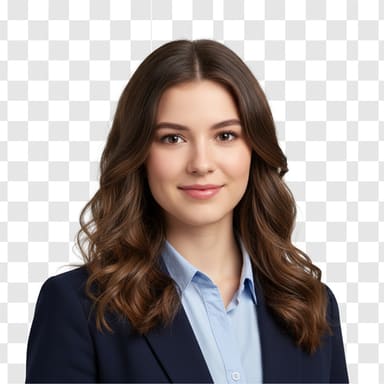 Background RemovalCut out the person or object and keep the edges clean.Try this filter
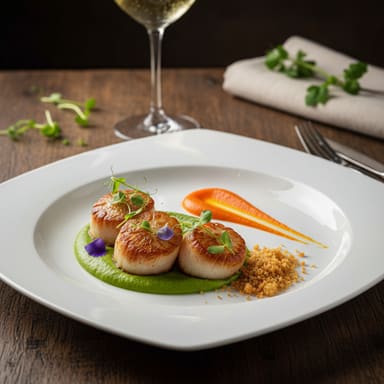 Professional PhotographyGive a snapshot studio lighting and a polished, professional look.Try this filter
Scene and Photo Effect Filters
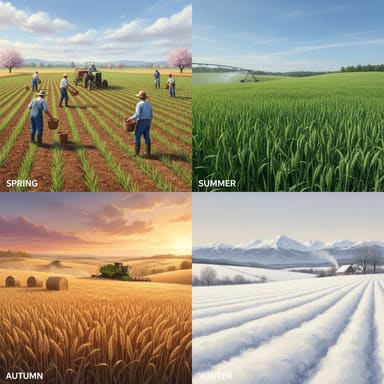
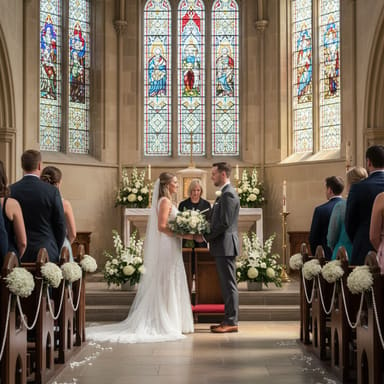
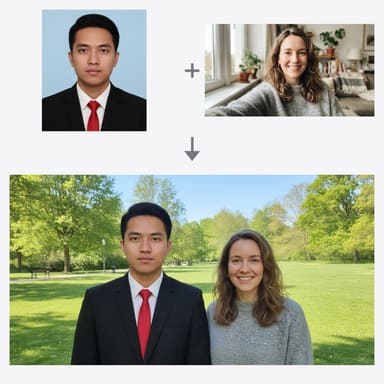
Scene filters change where or when the photo takes place: the same view in four seasons, a couple in a wedding portrait, or several photos combined into one.
Which AI Photo Filter Should I Use?
Start from what you want to see. Each filter page explains its options in detail.
| If you want to… | Use | Best photo to upload |
|---|---|---|
| See yourself as another gender | Gender Swap Filter | One clear, front-facing photo of one adult |
| Preview hair loss or a shaved head | AI Bald Filter | A photo with your hairline and forehead visible |
| Get a profile photo for LinkedIn or a resume | AI Headshot Generator | A recent selfie in soft, even light |
| Make a passport or visa-style photo | AI ID Photo Maker | A straight-on photo with a neutral expression |
| Turn a photo into a painting | Art Style Transfer | Any photo with a clear subject |
| Get an anime or manga look | Black and White Anime | A photo of a person or a scene with clear outlines |
| Fix an old, scratched or faded photo | AI Photo Restoration | A flat, well-lit scan or phone photo of the print |
| Remove the background | Background Removal | A photo where the subject stands out from the background |
| Put people from different photos together | AI Photo Combiner | 2 to 5 photos with similar light |
AI Filters vs. Classic Photo Filters
Classic filters in camera and social apps apply a fixed adjustment to the pixels you already have. AI photo filters ask an image model to draw a new version of the picture, which is why they can change a hairline or an art style, and also why small details can change.
| Classic filter / AI filter | Classic filter | AI filter |
|---|---|---|
| What it changes | Color, contrast, brightness, grain and vignette | Content and style: hair, clothing, background, art style, damage |
| How it works | The same fixed adjustment applied to every pixel | A generative image model redraws the picture from your photo and instructions |
| Details | Every original detail stays where it is | Small details can shift between runs, so compare with the original |
| Undo | Usually reversible in the app | Your original stays untouched; each run creates a new image |
| Cost | Usually free in the app | Uses credits on ViNano AI, shown before you generate |
The filters here use Nano Banana by default. Google describes the underlying Gemini 2.5 Flash Image model as able to make “targeted transformation and precise local edits with natural language”, such as blurring a background or adding color to a black and white photo (Google Developers Blog).
How to Use an AI Filter on Your Photos
Add a photo at the top of this page, or skip this step and open a filter directly. JPG, PNG, WebP and HEIC photos work; one clear subject in good light gives the best results.
Pick a filter. It opens with your photo already loaded, so you only choose the filter's options, such as the hairline stage, outfit, art style or background color.
Sign in, check the cost on the generate button and generate. Compare the result with your original, then download it or try another option.
Tips for Better AI Filter Results
- Use a sharp, recent photo. Blurry, tiny or heavily filtered photos give the model less to work with.
- For face filters, upload one person facing the camera, with no sunglasses and nothing covering the face.
- Say what must stay the same in the prompt box, for example “keep my glasses” or “keep the red jacket”.
- Generate two or three versions and keep the one that looks most like the real person or place.
- Fix first, then style: restore an old photo before you turn it into a painting or combine it with others.
What Happens to Your Photos
When you add a photo on this page, it is uploaded to our storage so that the filter you pick can open it, and it passes the same content safety check as every other upload. If you are signed in, it also appears in your recent uploads so you can reuse it. Your photos and results are not shown on this page or used as public examples.
Only upload photos of yourself or of adults who have agreed to it, and do not use a filtered photo to impersonate someone or mislead people. How uploads and results are stored, how long they are kept and how you can delete them are explained in our Privacy Policy.
AI Photo Filter FAQ
Are these AI photo filters free?
They are free to try. Adding a photo on this page is free; applying a filter needs a free account and uses credits. New accounts receive sign-up credits, 50 for most email providers. With Nano Banana, the default model, one filtered photo costs 25 credits on a free account. The generate button shows the cost before you start, and the pricing page lists credit packs and plans.
What happens to the photo I upload?
It is stored so the filter you pick can open it, checked by our content safety filter, and, if you are signed in, listed in your recent uploads. It is not shown publicly. Storage, retention and deletion are explained in our Privacy Policy.
Will an AI filter keep my face recognizable?
Face filters such as gender swap, bald and headshot instruct the model to keep your face shape, features and skin tone, but every result is a redrawn image, so small details can change. Art filters restyle the whole picture on purpose. Compare the result with your original and generate again if it drifts.
Do filtered photos have a watermark?
These filters do not add a visible watermark or logo. Google says every image created or edited with Gemini 2.5 Flash Image, the default Nano Banana model, carries an invisible SynthID watermark that marks it as AI-generated (Google Developers Blog).
Can I use an AI filter on a group photo?
Art, fix and scene filters work on any photo. Face filters work best with one person, because the instructions describe a single face. To put people from separate photos into one picture, use the AI Photo Combiner.
Which photo formats can I upload?
JPG, PNG and WebP photos, plus HEIC photos from iPhone, which are converted automatically. Photos are compressed before upload, so large phone photos are fine.